
Modern iPads, especially the iPad Pro with M-series chips, have evolved into powerful computing devices capable of replacing traditional laptops for many users. Apple’s M1 and later Silicon chips deliver laptop-level performance while consuming less energy, supporting external displays via Thunderbolt/USB4, and integrating seamlessly with Bluetooth peripherals. This guide covers essential hardware, software setups, and strategies to transform your iPad into a versatile laptop substitute, drawing from real-world deployments and user experiences.
Why Choose an iPad Over a Laptop?
iPads offer superior portability, longer battery life, and touch interface advantages that laptops can’t match. With Stage Manager in iPadOS, users can run up to 20 apps simultaneously, including multiple instances of the same app, mimicking macOS multitasking. Unlike laptops, iPads double as tablets for drawing, note-taking, and media consumption. However, success depends on proper accessories and app compatibility testing.
- Portability: Weighing under 2 pounds with a keyboard, iPads are easier to carry than most laptops.
- Battery Life: Up to 10-12 hours of use, far exceeding many laptops.
- Performance: M4 iPad Pro outperforms many Intel-based laptops in benchmarks.
- Versatility: Touchscreen, Apple Pencil support, and cellular options for on-the-go connectivity.
Essential Accessories for Laptop-Like Experience
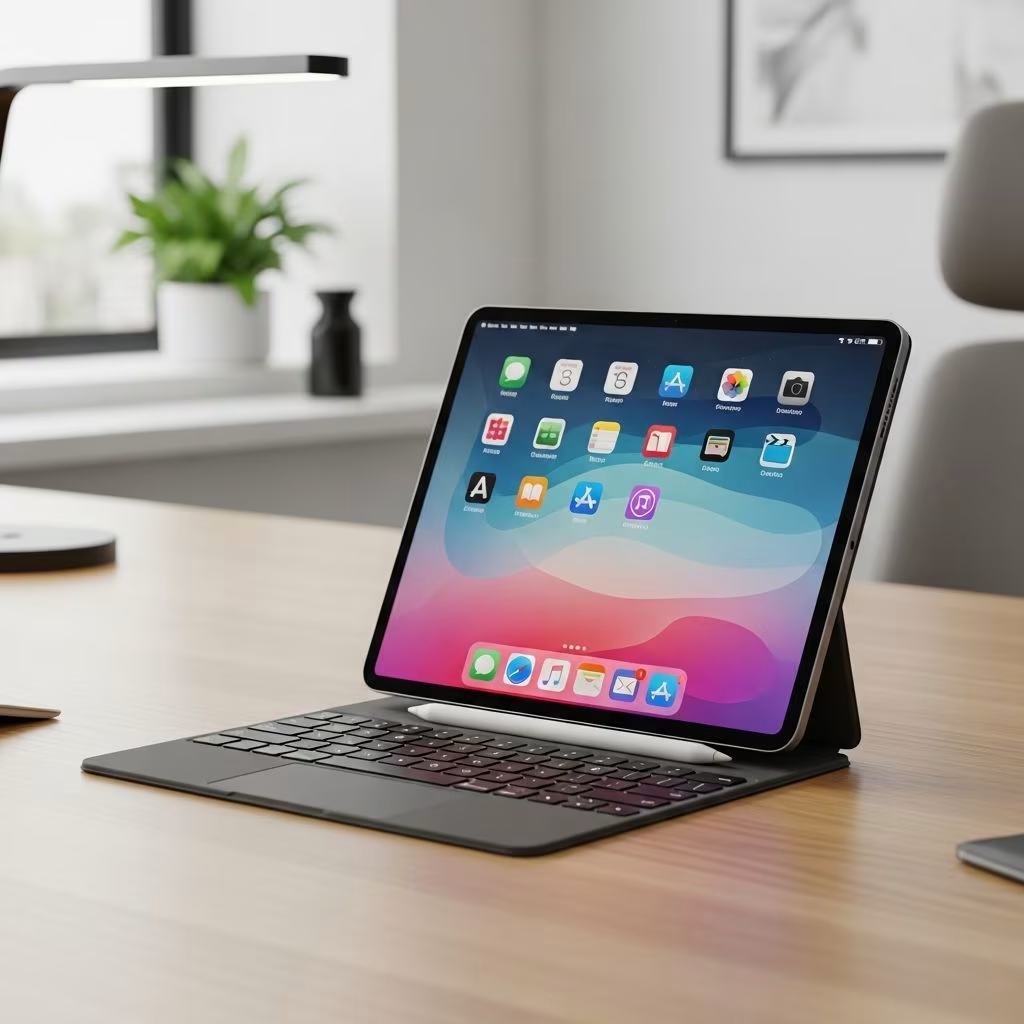
To replicate a laptop setup, invest in a keyboard case, trackpad, and external display support. Apple’s Magic Keyboard turns the iPad Pro into a clamshell device with a responsive trackpad that extends the touchscreen experience. It includes a pass-through USB-C port for charging while connecting peripherals.
| Accessory | Key Features | Compatibility | Price Range |
|---|---|---|---|
| Magic Keyboard | Backlit keys, trackpad, USB-C passthrough | iPad Pro 11″/13″ (M-series) | $299-$349 |
| Apple Pencil Pro | Pressure sensitivity, hover detection | iPad Pro/Air (USB-C/M4) | $129 |
| USB-C Hub/Dongle | HDMI, USB-A, SD card reader | All USB-C iPads | $20-$100 |
| External Monitor | Up to 6K resolution via USB4 | iPad Pro M1+ | $200+ |
Third-party options like Logitech keyboards or Paperlike screen protectors enhance typing and drawing precision. For lap use, the Magic Keyboard wobbles minimally, providing a stable typing experience comparable to laptops.
Setting Up Your iPad Home Screen Like a Desktop
Customize your home screen to mimic a macOS desktop for quick access. Use large widgets for calendars, weather, and reminders, and organize apps into folders by function (e.g., Productivity, Creative, Communication). Enable Settings like full keyboard access and trackpad gestures to replicate Mac behaviors: three-finger swipe for app switching, pinch for zoom.
- Go to Settings > Home Screen & Dock and allow more Dock space.
- Add widgets via long-press on home screen.
- Use Stage Manager (Settings > Multitasking) for resizable, overlapping windows.
Stage Manager supports four floating windows per group, up to four groups, enabling complex workflows like editing documents while referencing email.
Mastering Multitasking: Stage Manager and Split View
iPadOS multitasking surpasses early versions, with Stage Manager allowing desktop-style window management. Drag apps to create groups, resize freely, and use Slide Over for secondary apps. Limitations include no native menu bar in all apps and occasional app optimization issues—workarounds involve web versions via Safari (request desktop site).
- Split View: Side-by-side apps like Safari and Notes.
- Slide Over: Floating mini-window for quick tasks.
- External Display: Mirror or extend desktop to monitors via USB-C/HDMI dongles; trackpad controls both screens.
For dual-screen setups, connect a Thunderbolt display—the iPad becomes a compact laptop with expanded workspace.
Productivity Apps: Microsoft 365 and Beyond
Cloud-based suites make iPad a laptop rival. Microsoft 365 offers native iPad apps for Excel, Word, PowerPoint, Teams, and OneNote, fully featured for professional use. Adobe Creative Cloud apps like Photoshop and Lightroom run smoothly on M-series chips.
- Microsoft Apps: Azure, Dynamics, Planner, Power BI—iPad-optimized with touch gestures.
- Apple Natives: Pages, Keynote, Freeform for collaboration.
- Third-Party: Notion, GoodNotes, LumaFusion for notes and video editing.
Test web apps first: Many desktop sites work perfectly in Safari by requesting the desktop version. Export files directly to the Files app for easy management.
Cloud Storage and File Management
Integrate OneDrive or iCloud into the Files app for seamless access. OneDrive supports real-time collaboration, auto-sync, and large file handling without compatibility issues. iCloud ensures Apple ecosystem harmony.
- Setup: Files > Locations > Add OneDrive/iCloud.
- Benefits: Share, backup, and edit across devices.
- Pro Tip: Use spacebar in Files for quick previews.
Connecting External Displays and Peripherals
iPad Pro supports one external display up to 6K at 60Hz via USB4. Use dongles for HDMI/VGA legacy monitors. Pair Bluetooth mice (e.g., Logitech MX Anywhere) or trackpads for precision. USB hubs enable keyboards, drives, and Ethernet.
Deployment steps: Confirm monitor inputs (HDMI/USB-C), order cables, and test resolution scaling.
Security and Maintenance Best Practices
Protect your setup with enterprise-grade apps like Bitdefender or Sophos, balancing security and usability. Enable Face ID, two-factor authentication, and automatic backups. Regular iPadOS updates ensure compatibility.
Frequently Asked Questions (FAQs)
Q: Can the iPad fully replace a laptop for professional work?
A: Yes, for most tasks like office apps, web browsing, and light editing, especially with M-series iPads and Magic Keyboard. Complex software like full Adobe Premiere may require workarounds.
Q: Does the Magic Keyboard work on your lap?
A: It wobbles slightly but provides a solid laptop-like typing experience.
Q: How do I connect an external monitor?
A: Use a USB-C to HDMI/Thunderbolt cable or hub; Stage Manager extends the display.
Q: What about app compatibility issues?
A: Test web versions in Safari (request desktop site) or use Microsoft 365 natives.
Q: Is Stage Manager available on all iPads?
A: Requires iPadOS 16+ on M1 iPad Pro/Air or later models.
Limitations and When to Stick with a Laptop
iPads lack full desktop OS flexibility—no file system access or certain pro software. Trackpad requires unlocking via finger first, and some peripherals need dongles. For developers or heavy video editors, a MacBook may still be better. However, for 80% of users, iPad suffices with cloud tools.
In summary, with the right setup, your iPad becomes a lightweight, powerful laptop alternative—perfect for travel, hybrid work, and daily productivity.
References
- Can the iPad REALLY Replace Your Laptop Now? — YouTube (Sam-time Tech). 2023. https://www.youtube.com/watch?v=CBalrEWvz0Q
- How to deploy an iPad Pro as a desktop or laptop replacement — TechRepublic. 2023-05-15. https://www.techrepublic.com/article/how-to-deploy-an-ipad-pro-as-a-desktop-or-laptop-replacement/
- How I make my iPad Pro feel more like a Mac (Here’s My Setup) — YouTube (MacRumors). 2024. https://www.youtube.com/watch?v=9x9HVW6pDqY
- Apple iPad Pro Technical Specifications — Apple Inc. 2024-10-15. https://www.apple.com/ipad-pro/specs/
- iPadOS 18 Features Overview — Apple Developer. 2024-09-16. https://developer.apple.com/ipados/whats-new/
This article is general information, not personal financial advice. Consider your own situation, or speak with a licensed adviser, before acting on it.