

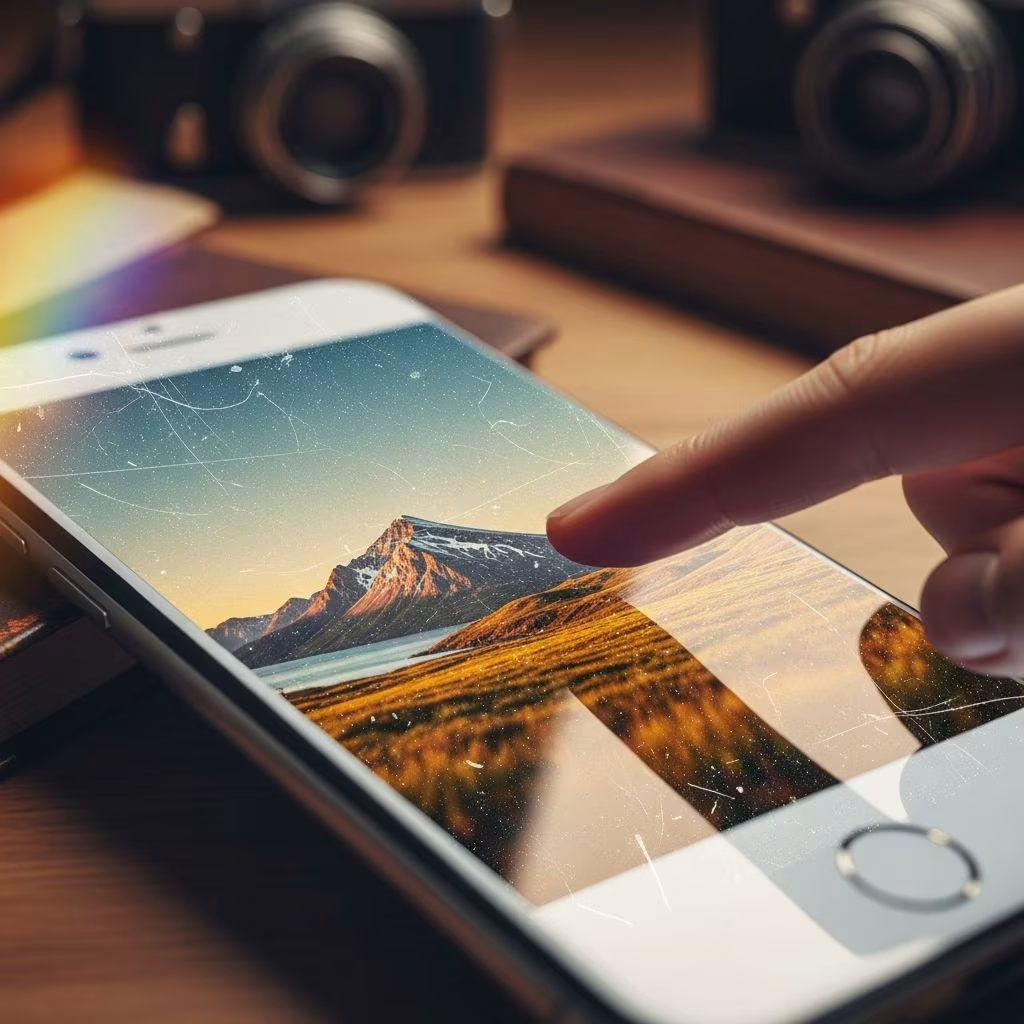
Ever wished you could take a brand-new digital photo and make it look like a cherished heirloom from decades ago? Aging photographs was once a meticulous art reserved for skilled retouchers, but today, a simple online tool can achieve stunning results in mere seconds. This guide reveals the secret Japanese website that does it all for free, along with expanded techniques, examples, and alternatives to help you master the vintage photo effect.
The Evolution of Photo Aging: From Darkroom to Digital Magic
Historically, aging a photograph required manual techniques like scratching emulsions, exposing prints to sunlight, or applying chemical baths to create fades, cracks, and sepia tones. Professional retouchers in the pre-digital era spent hours distressing images for authenticity. The advent of computers revolutionized this process. Software like Adobe Photoshop introduced ‘actions’—pre-recorded sequences of edits—that could simulate wear and tear with a single click.
Yet, even Photoshop demanded time and expertise. Tutorials often spanned 30 minutes or more, involving layers for dust, vignettes, color grading, and noise. For busy creators like ad professionals, bloggers, or scrapbookers, this was a barrier. Enter the modern solution: a free web-based tool that processes images almost instantly, bypassing complex software entirely.
Discovering the Ultimate Quick Hack
As a professional in the advertising industry, creating visuals for high-stakes presentations is routine. Recently, the need arose to age a contemporary photo to appear over 70 years old. Initial searches led to Photoshop video tutorials promising results but requiring significant setup time—curves adjustments, levels, saturation tweaks, gradient maps, noise filters, and vignettes, as detailed in advanced guides.
Just before diving in, a serendipitous link appeared: a Japanese website that transformed the image in under 3 seconds. No downloads, no sign-ups, no costs. The site, though primarily in Japanese, offers a convenient English translation toggle in the top right corner. Upload your photo, click ‘convert,’ and download the aged version instantly. The results are remarkably convincing, capturing subtle fades, color shifts to sepia-browns, and authentic paper wear.
Step-by-Step: Using the Free Japanese Aging Tool
Getting started is effortless, making it ideal for beginners and pros alike:
- Visit the Site: Navigate to the tool (bookmarked by many for its speed and quality). Switch to English via the top-right dropdown.
- Upload Your Image: Drag and drop or select a digital photo (JPG, PNG formats work best; note current limitations on ultra-high-res files).
- Convert Instantly: Hit the prominent ‘Convert’ or ‘Age’ button. Processing takes 1-5 seconds, depending on file size.
- Preview and Download: Inspect the aged result on-screen. Adjust if needed (some versions allow intensity sliders), then save in your preferred format.
- Pro Tip: For best outcomes, start with well-lit, high-contrast photos. Avoid overly busy backgrounds to let the aging effect shine.
This tool excels at replicating early 20th-century aesthetics: yellowed edges, speckled grain, and muted tones evocative of daguerreotypes or faded Polaroids.
Before and After: Real-World Examples
To illustrate the tool’s power, consider these transformations:
| Original Photo | Aged Version | Effect Highlights |
|---|---|---|
| A crisp, modern piggy bank on a clean white background. | Yellowed, cracked edges with dust specks and vignette darkening. | Instantly evokes 1940s thrift imagery. |
| A sleek space shuttle model in sharp color. | Sepia-toned with folded creases and faded highlights. | Transforms into a mid-century science fair relic. |
| A vibrant family portrait (author with daughters). | Worn corners, grainy texture, and warm brown hues. | Feels like a treasured snapshot from grandma’s album. |
These examples, processed in seconds, rival hours of manual editing. Users rave: ‘The effect looks gorgeous!’ and ‘What an awesome site!’
Why This Tool Stands Out: Speed, Cost, and Quality
In a world of bloated apps and paywalls, this gem is refreshingly simple. Zero cost, no watermarks, browser-based accessibility. Results impress with realistic imperfections: subtle scratches, color bleeding, and light leaks that scream ‘vintage.’ Limitations exist—high-res files (above 5MB) may need resizing first—but for web use, social media, or crafts, it’s perfect.
Bloggers use it for retro-themed posts, scrapbookers for personalized journals, card makers for nostalgic invitations, and journalists for illustrative timelines. Its bookmark-worthiness stems from reliability; thousands have adopted it since discovery.
Beyond the Quick Hack: Manual Techniques for Full Control
While the online tool is unbeatable for speed, understanding the underlying methods enhances creativity. Here’s a Photoshop-inspired workflow for custom aging:
- Curves Adjustment (Non-Destructive): Use adjustment layers. For reds, boost highlights; greens/blues for contrast and sepia base.
- Levels: Darken shadows, lighten midtones for faded look.
- Hue/Saturation: Reduce to -60 for desaturated vintage pallor.
- Gradient Map: Map sepia tones (e.g., #E49F26 to white) at 25% opacity.
- Photo Filter: Apply warming filter (#EC8A00) with brush masking for selective aging.
- Noise: Add 50% uniform grain, non-monochromatic.
- Vignette: Lens Correction filter at -50 for edge darkening.
These steps, layered smartly, yield pro results. Tools like GIMP offer free equivalents.
Advanced Applications and Creative Ideas
Elevate your projects:
- Social Media: Age selfies for #ThrowbackThursday with eerie realism.
- Marketing: Vintage-fy product shots for retro campaigns.
- Storytelling: Embed aged photos in e-books or newsletters for immersion.
- Crafts: Print for decoupage, altered books, or mixed media art.
- Video Teasers: Though image-focused, batch-process frames for simple animations.
Combine with AI filters for de-aging contrasts or progression effects, trending on platforms like TikTok.
Tips, Tricks, and Troubleshooting
- File Prep: Crop to focus; boost contrast pre-aging.
- Batch Processing: Resize multiples for efficiency.
- Enhance Post-Aging: Add text overlays in Canva for labels like ‘1942.’
- Mobile Use: Works on phones via browser; save to gallery.
- Alternatives: If unavailable, try Wondershare Virbo’s AI aging or Photoshop actions.
Frequently Asked Questions (FAQs)
Is the Japanese tool really free and safe?
Yes, it’s completely free with no watermarks or ads forcing payments. Use reputable browsers; scan downloads as with any site.
Does it work on high-resolution images?
Currently optimized for web sizes (under 2MB ideal). Resize larger files in Preview or Photoshop first.
Can I customize the aging intensity?
The core tool applies a standard effect, but manual tweaks post-download allow fine-tuning.
What about portraits or group photos?
Excels on faces, adding natural skin texture and tonal shifts without over-distortion.
Are there mobile apps like this?
No exact match, but apps like FaceApp offer aging filters; this web tool is superior for full images.
Limitations and Future Outlook
While revolutionary, the tool skips hi-res support and advanced controls. As AI advances, expect evolutions like video aging or 3D effects. For now, it’s the fastest path to vintage vibes.
Disclaimer: Links may be affiliates, but recommendations are genuine.
References
- Quick Hack: How To Age a Digital Photograph in Seconds — Wise Bread. 2010-approx. https://www.wisebread.com/quick-hack-how-to-age-a-digital-photograph-in-seconds
- “Aging” Your Photos Digitally – YouTube — Envato Tuts+. 2014-07-15. https://www.youtube.com/watch?v=0SuWORfhE-c
- Video De-Aging Effect with A.I | Easy Deepfake using Ebsynth — YouTube. Recent. https://www.youtube.com/watch?v=R8SMJFfohf0
This article is general information, not personal financial advice. Consider your own situation, or speak with a licensed adviser, before acting on it.